Chapter 9 SPC Charts with ggplot2
Armed with the set of functions developed in Chapter 8 , we are now able to construct all of the most commonly used SPC charts using base R. Furthermore, the modular structure of the function library makes it straightforward to extend. To add a new type of chart, we simply need to write a corresponding spc.*() function to calculate the centre line and control limits, and then include this function in the chart argument of the main spc() function.
Because we have separated the calculation of chart components from the plotting itself – by introducing a dedicated plotting method, plot.spc() – it is also easy to replace the base R graphics engine with an alternative like ggplot2 or lattice.
In this chapter, we develop an alternative plotting function based on ggplot2. The advantage of ggplot2 is not that it can do things that base R cannot, but that it often makes common tasks simpler and more consistent.
For example, ggplot2 automatically handles scaling of axes and layout of labels, so we do not need to adjust these manually when adding elements to a plot. In addition, ggplot2 provides a powerful theming system that makes it relatively easy to customise the non-data elements of a chart, such as colours, grid lines, and axis formatting.
9.1 Creating an SPC object for later plotting
Using the spc() function from the previous chapter, we can create an SPC object and store it for later use:
Here, we suppress plotting by setting plot = FALSE. The function instead returns a data frame containing all the coordinates and metadata needed to construct the chart. This object is assigned to p, which we can now manipulate like any other R object.
## [1] "spc" "data.frame"## x y n lcl cl ucl sigma.signal runs.signal chart
## 1 2020-01-01 12 1 0 5.041667 11.77776 TRUE TRUE c
## 2 2020-02-01 7 1 0 5.041667 11.77776 FALSE TRUE c
## 3 2020-03-01 1 1 0 5.041667 11.77776 FALSE TRUE c
## 4 2020-04-01 4 1 0 5.041667 11.77776 FALSE TRUE c
## 5 2020-05-01 4 1 0 5.041667 11.77776 FALSE TRUE c
## 6 2020-06-01 5 1 0 5.041667 11.77776 FALSE TRUE cBecause p is an object of class “spc” we simply call the generic plot() function: plot(p).
# show the C chart
plot(p) # not necessary to call spc.plot(), just call the generic plot() function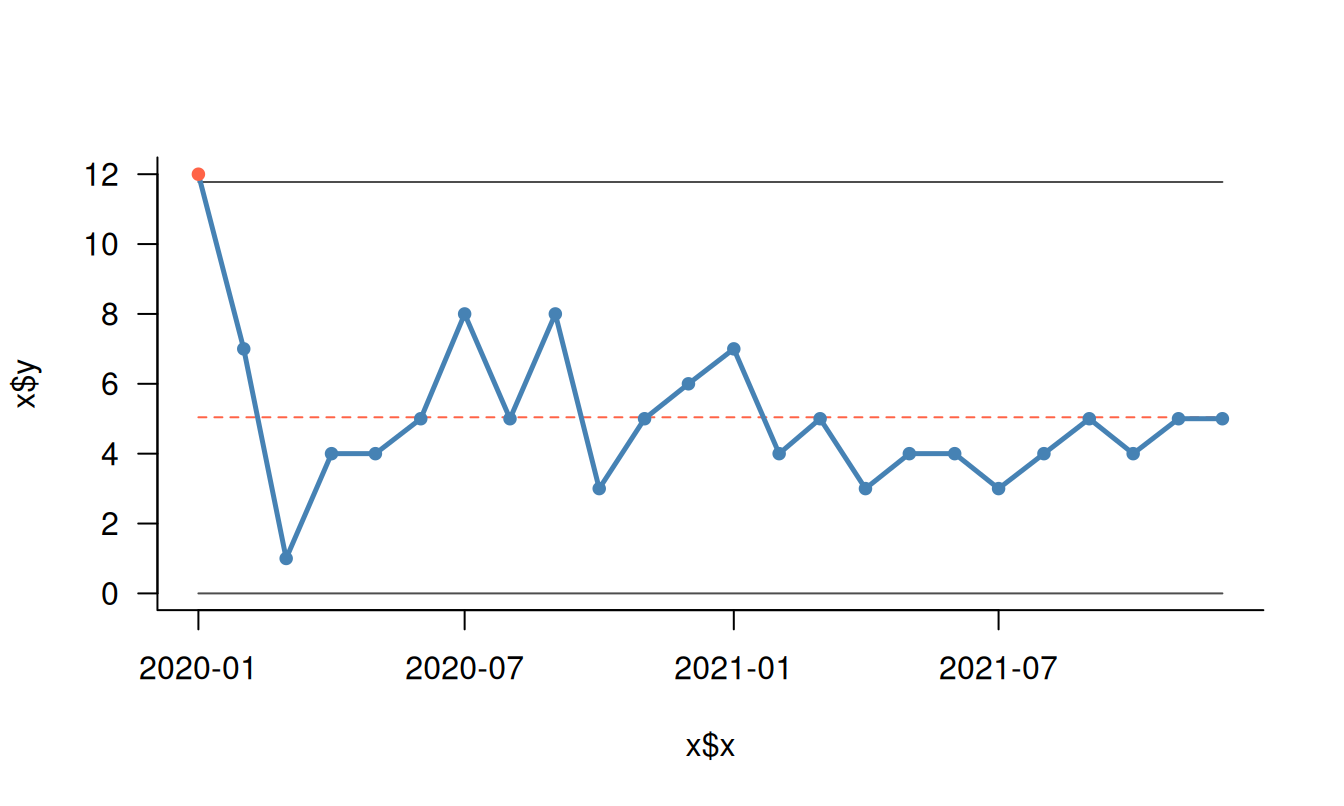
Figure 9.1: SPC chart
The generic plot() function automatically dispatches to the specialised plot.spc() method (9.1).
9.2 Making a new plot function based on ggplot2
We can now define an alternative plotting function that uses ggplot2.
# Load ggplot2
library(ggplot2)

# Function for plotting spc objects with ggplot()
ggspc <- function(p) {
  # Set colours
  col1    <- 'steelblue'
  col2    <- 'tomato'
  linecol <- 'gray50'
  dotcol  <- ifelse(p$sigma.signal, col2, col1)
  clcol   <- ifelse(p$runs.signal[1], col2, linecol)
  cltyp   <- ifelse(p$runs.signal[1], 'dashed', 'solid')

  # Plot the dots and draw the lines
  ggplot(p, aes(x, y)) +
    geom_line(aes(y = lcl), colour = linecol, na.rm = TRUE) +
    geom_line(aes(y = ucl), colour = linecol, na.rm = TRUE) +
    geom_line(aes(y = cl), colour = clcol, linetype = cltyp, na.rm = TRUE) +
    geom_line(colour = col1, na.rm = TRUE) +
    geom_point(colour = dotcol, na.rm = TRUE)
}
We then use this function to plot the SPC object (Figure 9.2).
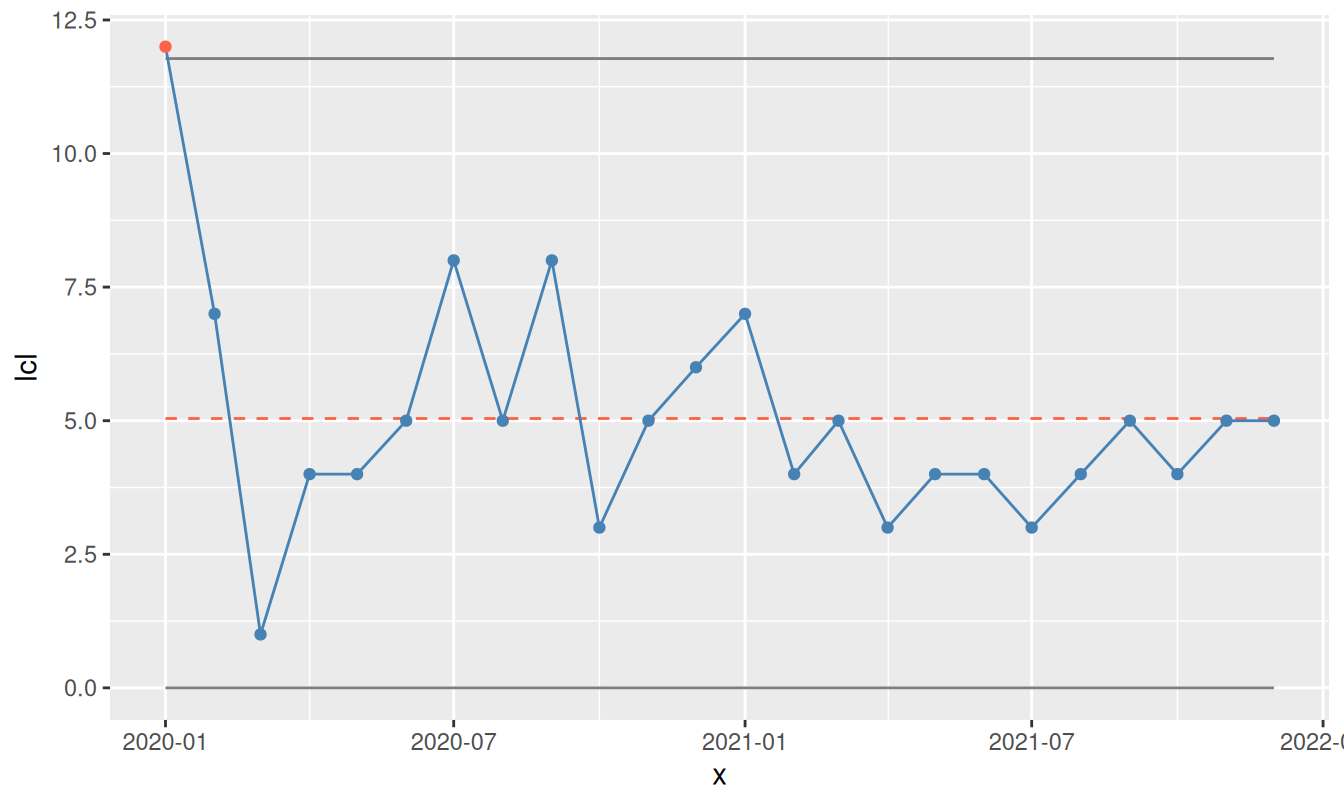
Figure 9.2: SPC chart using the ggspc() function
This function produces a plot equivalent to the base R version, but using ggplot2’s grammar of graphics.
We can also convert the SPC object into a ggplot object and then further customise it as in Figure 9.3.
## [1] "ggplot2::ggplot" "ggplot"          "ggplot2::gg"     "S7_object"
## [5] "gg"
# modify theme and labels
p +
theme_light() +
theme(panel.grid = element_blank(),
panel.border = element_blank(),
axis.line = element_line(colour = 'gray')) +
labs(title = 'CDiff infections',
y = 'Count',
x = 'Month')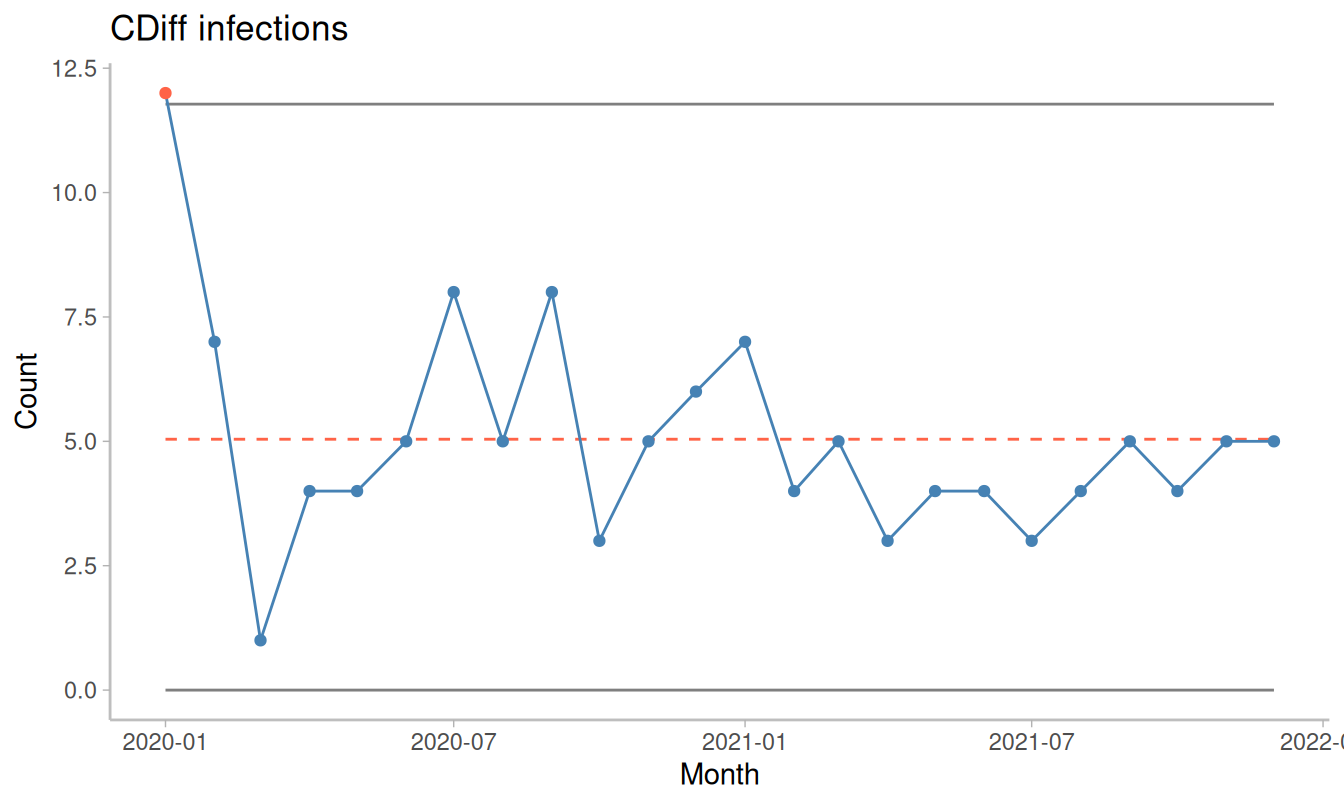
Figure 9.3: SPC chart with modified theme
At this point, we could replace the existing plot.spc() function with this new implementation if desired. The choice between base R and ggplot2 ultimately comes down to personal preference and use case.
9.3 Customising the plotting theme
The final example in this chapter shows how to define a custom theme and format the y-axis as percentages (Figure 9.4).
mytheme <- function() {
  theme_light() +
  theme(panel.grid   = element_blank(),
        panel.border = element_blank(),
        axis.line    = element_line(colour = 'gray'))
}

p <- spc(month, deaths, patients,
          data = bact,
          chart = 'p',
          plot = FALSE)

ggspc(p) +
  mytheme() +
  scale_y_continuous(labels = scales::label_percent()) +
  labs(title = '30-day mortality',
       y     = NULL,
       x     = 'Month')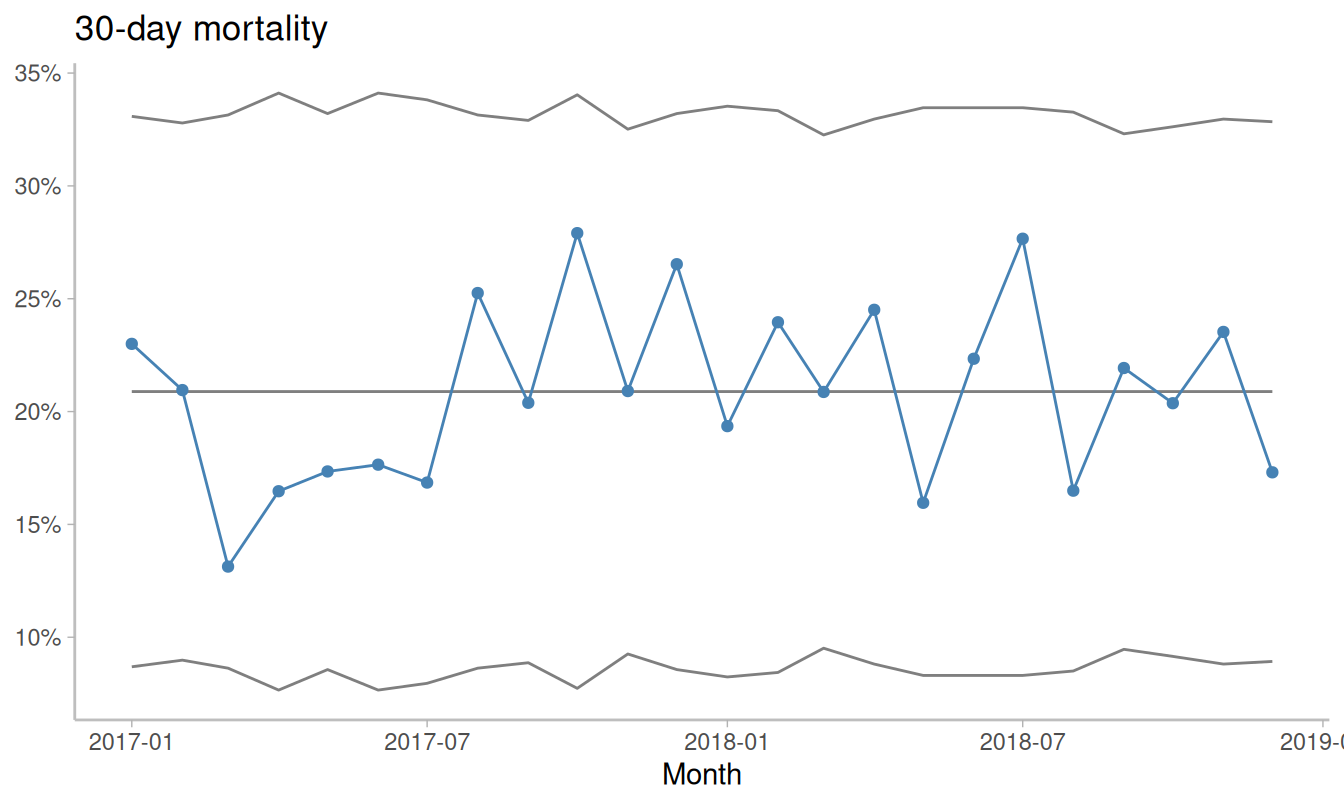
Figure 9.4: SPC chart with labels and custom y-axis
In practice, repeatedly defining themes and formatting axes for each plot can become tedious. Ideally, these elements would be handled automatically.
9.4 Preparing for qicharts2
This is precisely the aim of qicharts2, an R package for SPC charts that we introduce in the next chapter. The package builds on the same principles developed so far but provides additional functionality for customisation and automation.
In particular, qicharts2 makes it easy to create multidimensional plots using ggplot2’s faceting capabilities, allowing multiple related charts to be displayed together in a consistent and flexible way.